

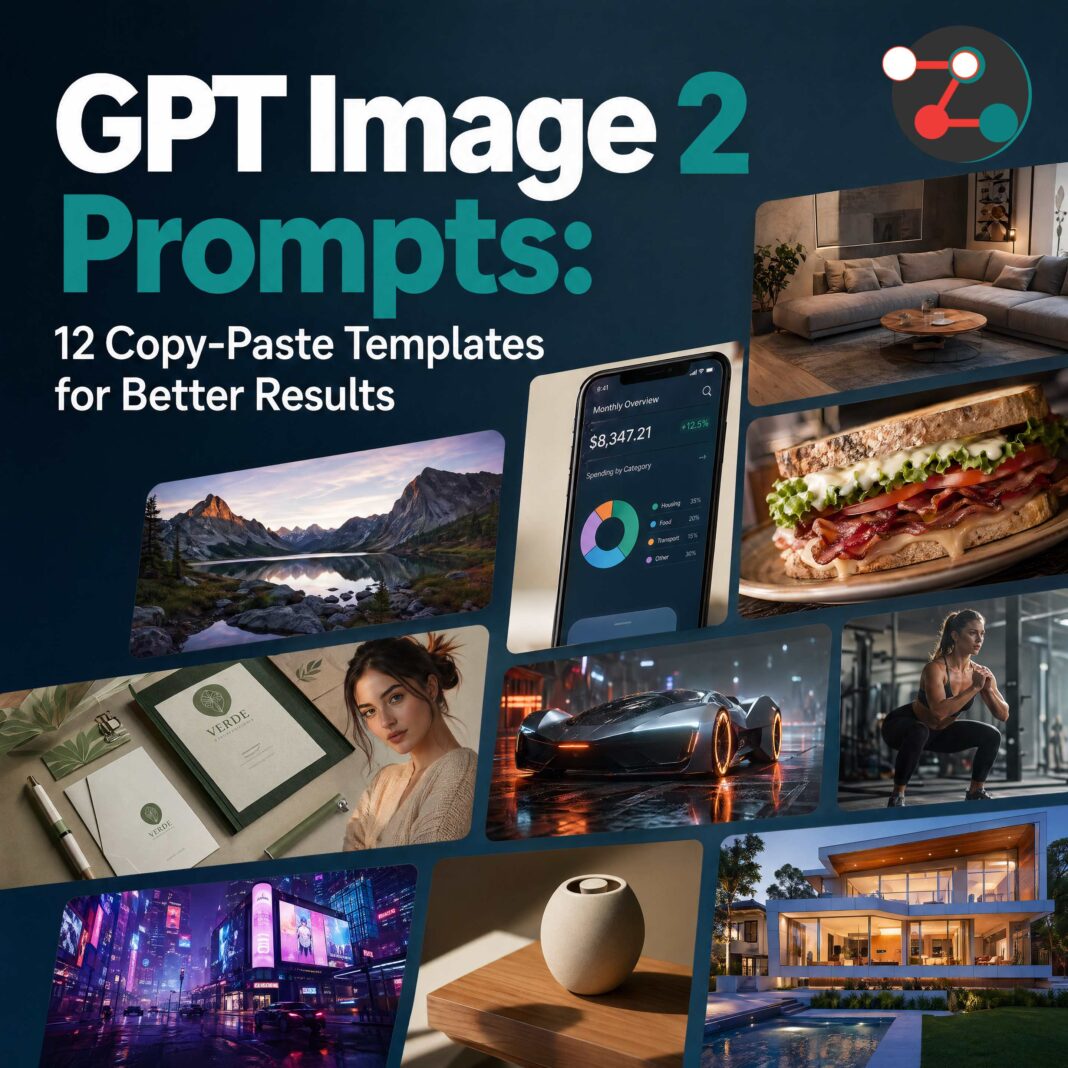

GPT Image 2 wasn’t trained like Midjourney. It doesn’t parse keyword stacks — it reads briefs. Once you understand this, you stop guessing and start getting poster-quality, photorealistic, text-accurate results on the first or second try.
Most people are still typing keyword soup like cinematic lighting, hyperrealistic, 8k, ultra detailed — and wondering why the result looks generic. That’s not how GPT Image 2 works.
Unlike older diffusion models, GPT Image 2 was trained on real-world creative workflows — the way designers, photographers, art directors, and marketers actually brief each other. That means it responds to intent, not tags.
With the right structure you can generate:
- Photorealistic documentary portraits & editorial shots
- Professional product hero shots with legible labels
- UI & app mockups with accurate pixel spacing
- Movie posters, magazine covers & social ads
- Manga panels, infographics & character reference sheets
- Brand guideline documents with exact hex codes
Why GPT Image 2 Prompts Work Differently
Midjourney built an entire internet culture around compressed keyword logic:
--ar 16:9 --stylize 1000 hyperreal octane render.
GPT Image 2 doesn’t parse that — it parses intent. That’s why creators inside our private Facebook group see better outputs faster when they switch to briefing instead of stacking random tags.
❌ Keyword soup
cinematic lighting
hyperrealistic 8k
ultra detailed masterpiece
✅ Visual direction
Warm directional light from upper left, soft shadow across the right side of the face, golden-hour temperature, shallow depth of field
One gets interpreted. The other gets guessed. That’s the whole game.
The Universal Prompt Formula
Or use our five-slot template for maximum clarity. We also post weekly updated versions and tested real-world prompt structures inside the ZGenMedia supporter membership for creators who want production-ready results.
Structure every prompt as
- Artifact
- Subject
- Scene
- Details
- Constraints
- Style
Here… for maximum clarity:
Default Template
Scene:
[where this happens, time of day, background, environment]

Subject:
[who or what is the main focus]

Important details:
[materials, clothing, texture, lighting, camera angle, lens feel, composition, mood]

Use case:
[editorial photo / product mockup / poster / UI screen / infographic / concept frame]

Constraints:
[no watermark / no logos / no extra text / preserve face / preserve layout]
The fifth slot — Constraints — is where most mediocre prompts fail silently. Describe the idea without bounding it and the model gets inventive in directions you’ll regret.
6 Anti-Slop Rules for Better Outputs
These rules are simple, but most users ignore them. That’s usually the difference between “AI slop” and something a client will actually pay for. If you work with client deliverables, branding, or social campaigns, save this post and join our creator discussion group here where we review prompt fixes daily.
- Visual facts over vague praise. Avoid: stunning, incredible, masterpiece, gorgeous. Prefer: overcast daylight, brushed aluminum, chipped paint, clean kerning, soft bounce light.
- Style tags need visual targets. Don’t say “minimalist.” Say: cream background, heavy black condensed sans-serif, asymmetrical type block, generous negative space.
- Say the real thing. If it must show a transit kiosk, say transit kiosk. Mood language buries the brief.
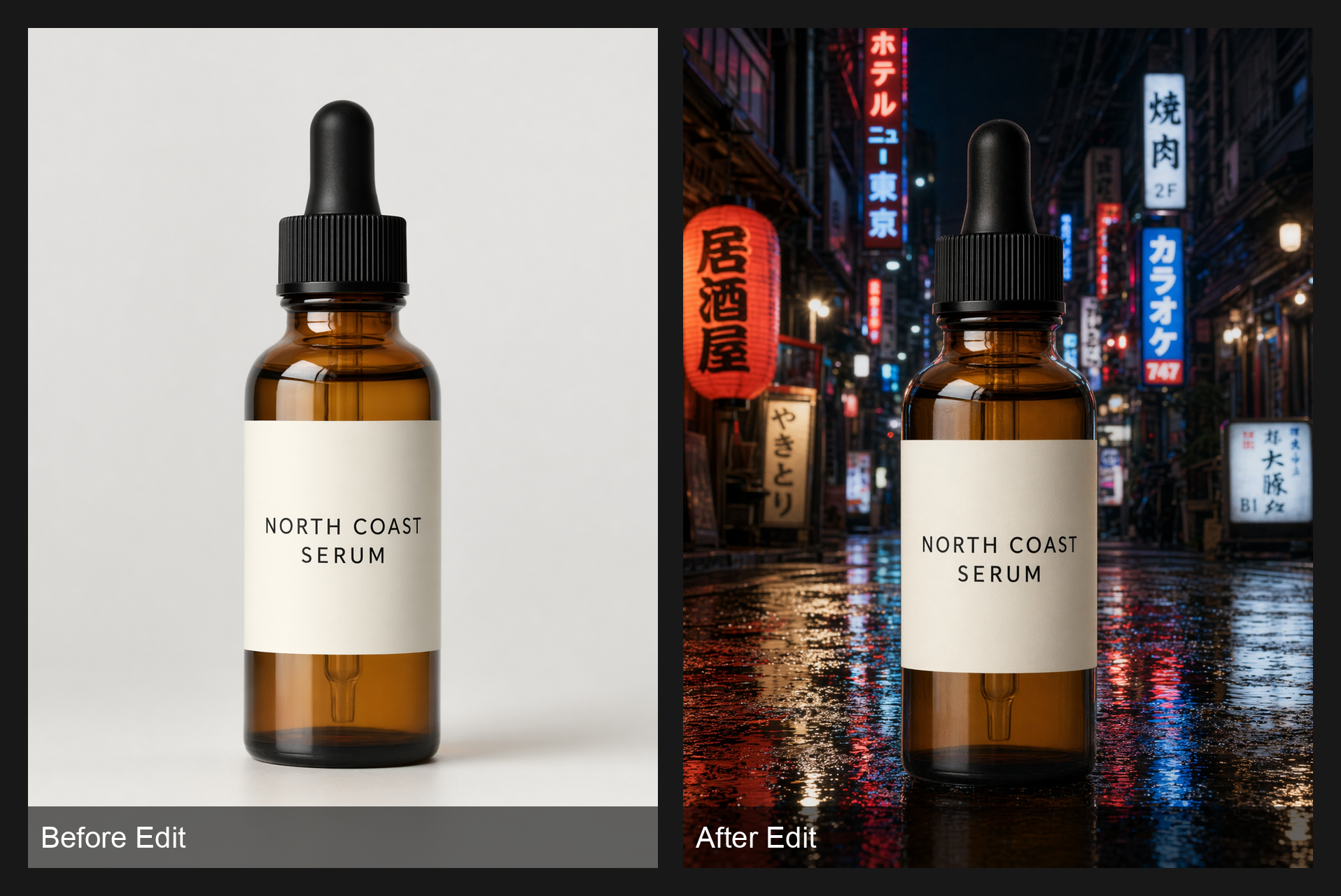
- In edits, separate change from preserve. Use “change only X” and “keep everything else the same,” and repeat the preserve list each iteration to reduce drift.
- Treat text like typography. Wrap literal text in quotes, specify font style, size, color, and placement. Add verbatim — no extra characters at the end of any text rule.
- One revision per turn. Small iterative edits outperform one giant rewrite. Make the light warmer. Remove the extra chair. Restore the wall texture. Keep everything else.
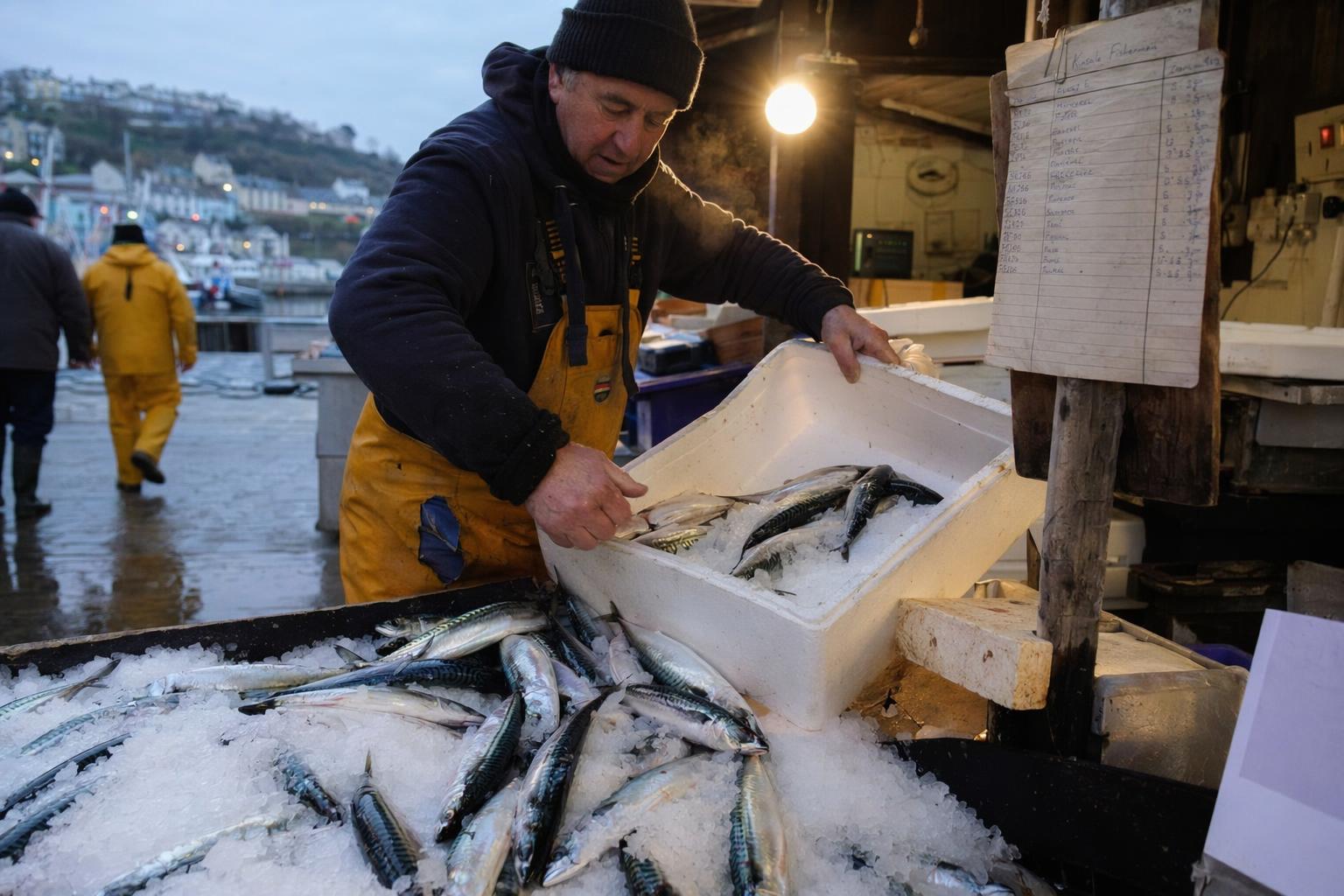
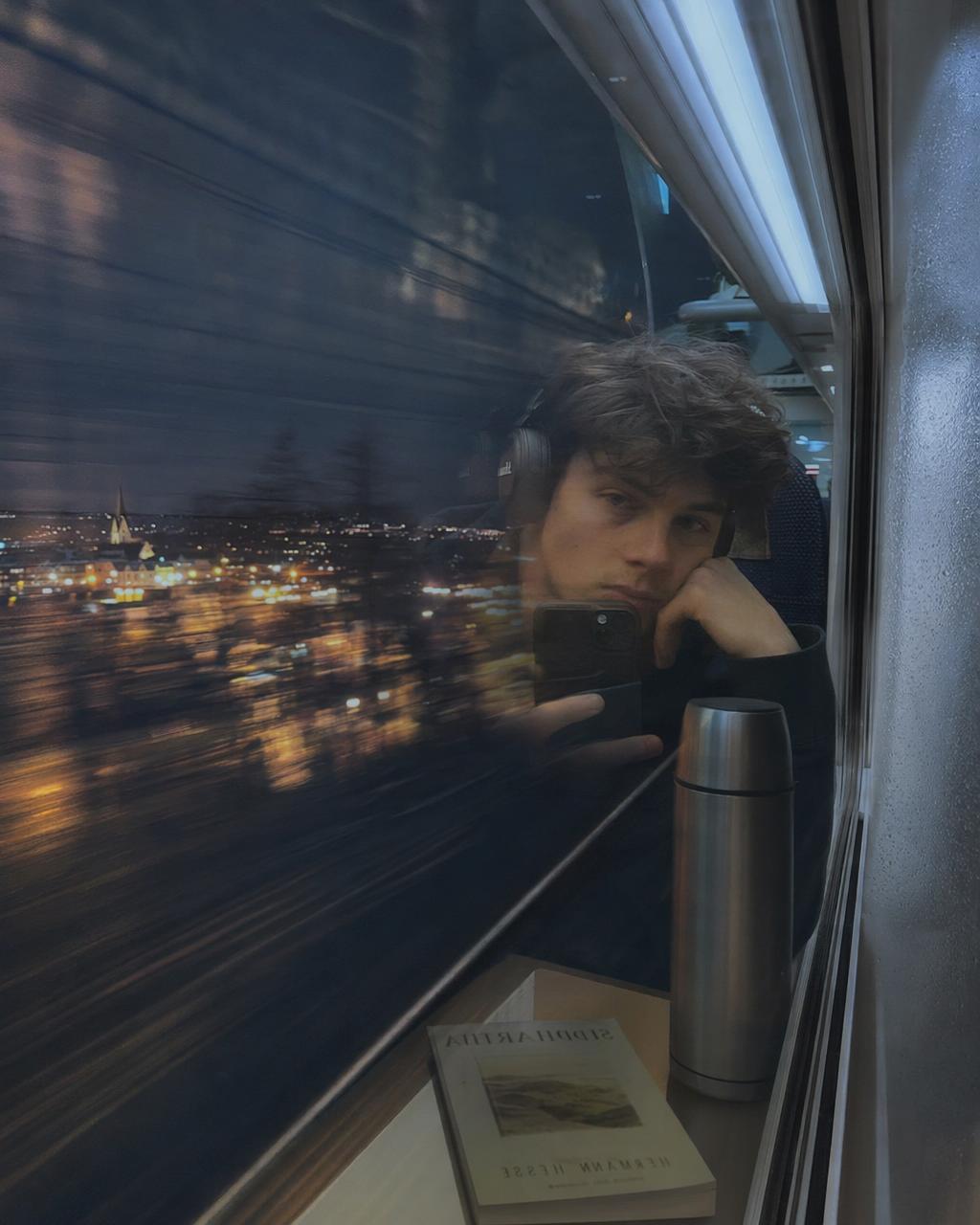
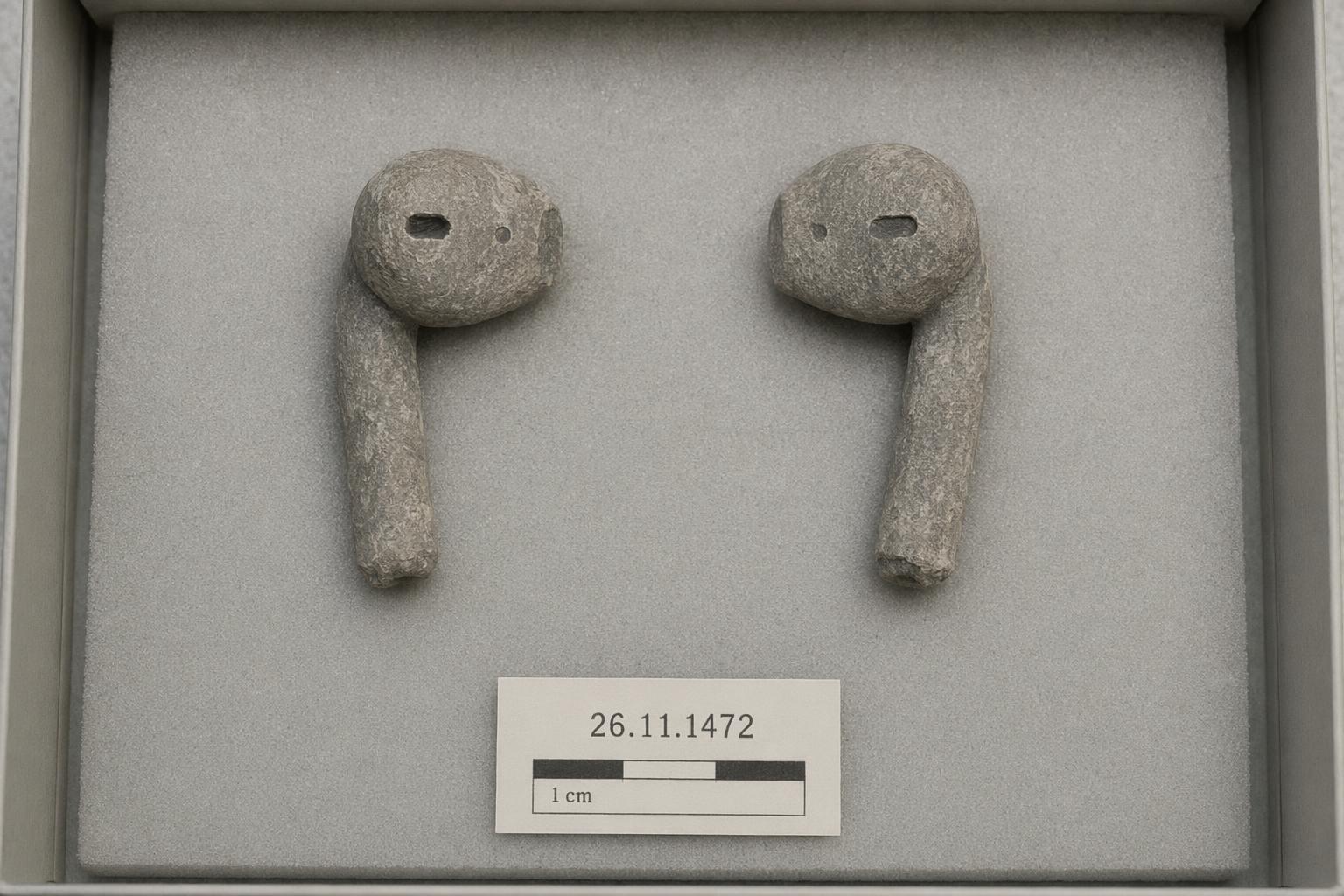
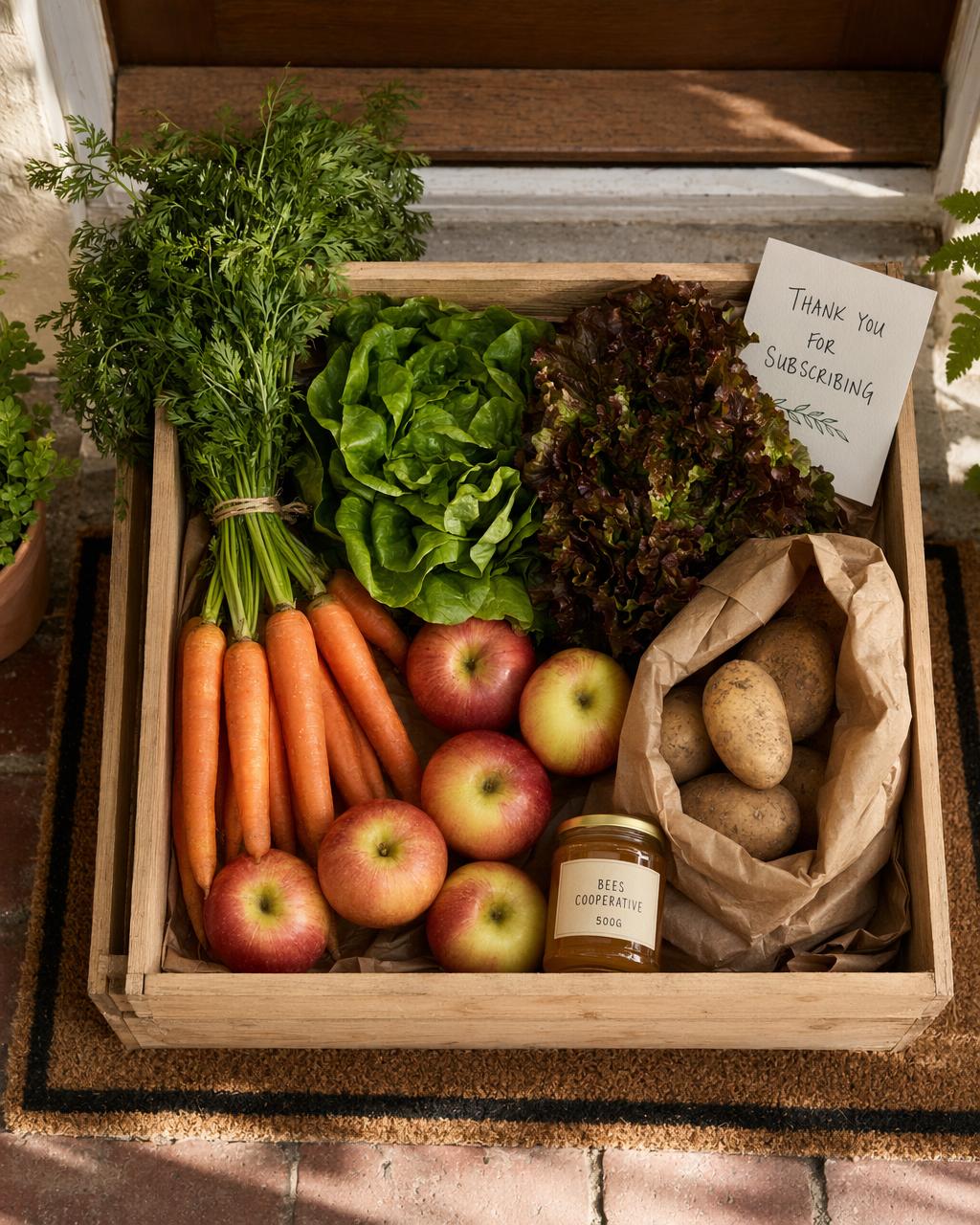
Real GPT Image 2 Outputs (From fal.ai)
Before the templates, here’s what properly structured prompts actually produce. These examples come from tested workflows similar to what we break down in our premium prompt library and membership vault.
12 Copy-Paste Prompt Templates
These templates are your starting point, not the finish line. The best creators refine them based on use case, client goals, and output consistency. If you want advanced versions built for paid work, social ads, and editorial projects, the full upgraded packs are available through our Ko-fi membership.
Prompt Template
A color documentary photograph of [SUBJECT] doing [ACTION]
at [LOCATION] during [TIME OF DAY].

[Atmospheric detail — e.g. steam from breath in the cold air]
[Background texture — e.g. wet concrete floor, incandescent work lamp]
[One human detail — e.g. flour on hands, worn rubber boots]

Shot on 35mm.
Natural light only.
Slight grain.
No post-processing look.
No watermark.
Prompt Template
A cinematic high-resolution portrait of [SUBJECT]
doing [ACTION] in [LOCATION].

Lighting:
[e.g. warm directional key light from upper left, cool fill from right]

Sharp focus on [FACE / HANDS].

[FILM STOCK / STYLE — e.g. Kodak Portra 400, shallow depth of field]

Constraints:
no cartoon, no flat lighting, no stock photo look, no watermark.
Prompt Template
Studio product photography of [PRODUCT],
floating above [SURFACE — e.g. matte black stone].

Soft key light from upper left,
subtle fill on right,
clean drop shadow.

Background: [COLOR / TEXTURE]

Label reads:
"[EXACT TEXT]" verbatim — no extra characters.
Prompt Template
A professional single-page brand guideline document for [BRAND NAME].

Top section: logo mark and wordmark
Middle section: color swatches labeled with HEX codes [e.g. #1B2A4A, #F5F0EB]
Below: primary and secondary typography
Bottom: usage do/don't examples

Tagline:
"[YOUR TAGLINE]" verbatim — no extra characters.

Clean white background, editorial layout.
Prompt Template
A 1:1 social media ad for [PRODUCT / SERVICE].

Headline:
"[HEADLINE TEXT]" verbatim

CTA button:
"[BUTTON TEXT]" verbatim

Brand colors: [HEX CODES]

Mood: minimal
No stock photo feel. No watermark.
Prompt Template
A [ERA — e.g. 1970s] theatrical movie poster for "[FILM TITLE]".

Foreground: [SUBJECT description]
Composition: [e.g. full-body centered, dramatic low angle]

Tagline:
"[TAGLINE]" verbatim — no extra characters.

Credits block at bottom in small print.
No watermark.
Prompt Template
A manga page with 4 panels.

Panel 1: wide establishing shot — [LOCATION]
Panel 2: extreme close-up — [SUBJECT DETAIL]
Panel 3: over-the-shoulder shot — [ACTION]
Panel 4: medium shot — [REACTION / RESOLUTION]

Dialogue bubble in panel [N]:
"[TEXT]" verbatim.

Black and white ink style, clean line art, speed lines where appropriate.
Prompt Template
Split-screen photograph.

Left panel:
[LOCATION] in [YEAR / ERA — e.g. 1975]

Right panel:
Same exact location in [YEAR / ERA — e.g. 2025]

Matching perspective and focal length across both panels.
Visible dividing line in the center.
No watermark.
Prompt Template
A 360° equirectangular panoramic image of [ENVIRONMENT].

Ahead: [DESCRIPTION]
Behind: [DESCRIPTION]
Left: [DESCRIPTION]
Right: [DESCRIPTION]
Above: [DESCRIPTION]
Below: [DESCRIPTION]

No visible seams.
No distortion at poles.
No watermark.
Prompt Template
A clean one-page infographic titled:
"[TITLE]" verbatim.

4 sections only:
1. [SECTION 1 HEADING + one-sentence description]
2. [SECTION 2 HEADING + one-sentence description]
3. [SECTION 3 HEADING + one-sentence description]
4. [SECTION 4 HEADING + one-sentence description]

All text verbatim — no extra characters.
Readable at 800px width.
White background, clear icon set, minimal color palette.
Prompt Template
A high-fidelity UI mockup of a [APP TYPE] app.

Device: iPhone 16 Pro (or Android / Desktop)

Layout top to bottom:
- Header: "[GREETING / TITLE TEXT]"
- [MAIN CONTENT AREA description]
- Primary CTA button: "[BUTTON LABEL]" verbatim

Brand colors: [HEX CODES]
Pixel-accurate spacing.
No placeholder lorem ipsum.
No watermark.
Prompt Template
A professional character reference sheet for "[CHARACTER NAME]".

Views:
- Front view (full body)
- 3/4 view (full body)
- Side profile (full body)

Same outfit, same proportions, same face across all three views.
White background, clean label lines.
Character name label: "[NAME]" verbatim.
No watermark.
The Text Accuracy Formula
GPT Image 2 is the first major image model that genuinely handles in-image text well — but only if you follow these four rules. We post additional typography-tested prompt examples inside the community group because text accuracy is where most commercial work succeeds or fails.
Text Rules — Apply to Every Prompt
✅ Put copy inside double quotes
✅ Use ALL CAPS when the design requires it
✅ Spell unusual brand names carefully, letter by letter if needed
✅ End text instructions with: verbatim — no extra characters
That last line alone fixes the majority of text hallucination failures.
3 Modes at a Glance
Generate, Edit, and Combine each require slightly different prompting behavior. Most users fail because they use the same structure for all three. We cover deeper examples weekly inside our membership tutorials and live prompt drops.
🎨 Generate
Start from text only. Posters, photos, UI, illustrations. Use the 5-slot template.
✏️ Edit
Change one thing per turn. Always list what to Preserve alongside what to Change.
🔀 Combine
Label each input image by role. “Image 1: base. Image 2: jacket reference.” Up to 16 inputs.
Final Thoughts
The difference between average GPT Image 2 outputs and elite ones is almost never “better AI.” It’s better instructions. Not more words — better words. More precise words.
Run every prompt through the formula and your outputs immediately separate from 90% of users. Bookmark this post, revisit these templates often, and if you want the next level—client-ready prompt systems, monetization strategy, and private creator breakdowns—join our Facebook creator hub or unlock the full ZGenMedia membership.
Run every prompt through the formula:
Your prompt checklist
- Artifact
- Subject
- Scene
- Details
- Constraints
- Style
…and your outputs will immediately separate from 90% of users. Bookmark this post and use the templates as starting points — then iterate one change at a time.
Want More Prompt Engineering Tips?
Join our AI creator community where we break these prompts down daily — live drops, workflows, monetization strategies, and advanced templates for serious creators building real income with AI.
Prefer community first? Join our free discussion space on Facebook:
ZGenMedia Creator Group
Images via
fal.ai GPT Image 2 Prompting Guide
· Generated with GPT Image 2 · More creator resources available on
Ko-fi